
Running Highcharts within SSRS (or any JS Graph Library)
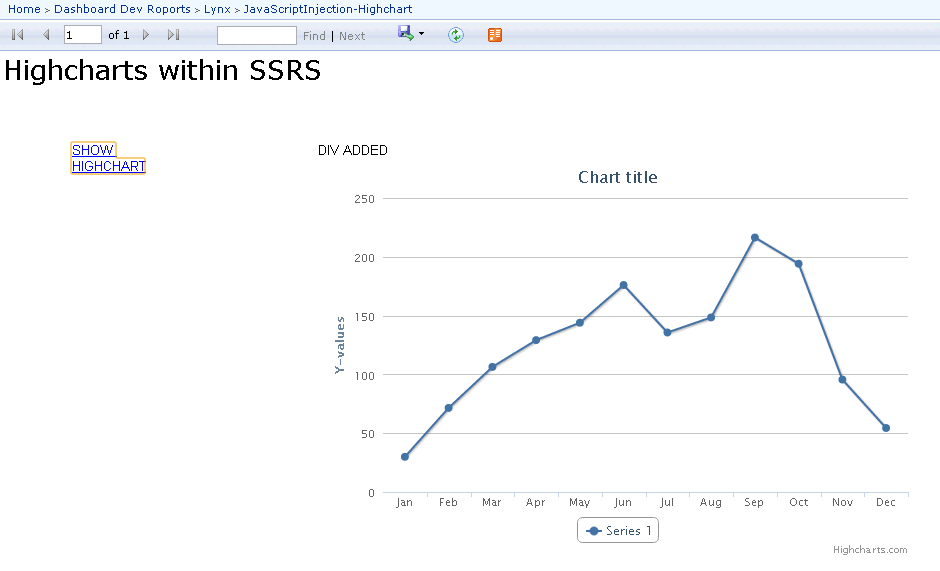
In a previous post I described how to convert an SSRS graph into a Highcharts graph by consuming the XML output of the report from the SSRS Web Service and converting that to an input for a Highcharts graph.
That article seemed to be very popular (in fact was the top most popular for a while), so I decided to take this concept a step further, In this article I will show you how, using JavaScript injection into SSRS reports, you can display a Highcharts graph from within SSRS itself (just like any other SSRS report) when the SSRS report is rendered into HTML.
I have created a working example of the SSRS and Highcharts integration (1 RDL 1 JS file), I will be referencing this code throughout the article, and also show which bits of the code you will need to edit to get Highcharts to show on your own SSRS setup.
The concept is very simple and is based on the fact that the SSRS report authoring schema and the SSRS rendering engine supports embedding a limited number of HTML tags, which we can use to execute click-driven JavaScript and control the placement of our Highcharts (or any JS based graphing library) with the SSRS report container.
The two HTML elements used within the SSRS report in the example are the <a> and the <span> tags.
SSRS JavaScript Injection through <a> (Link) Tag
There is an excellent article by Oud-medewerkers that demos how to inject JavaScript into SSRS via an Link tag, the main idea is simple:
- Add a Textbox element to an SSRS report.
- In the Value expression of the Textbox, add an HTML Hyperlink element <a> with the href attribute performing a JavaScript function (as shown in the image below). Be sure to escape your code properly.

- In the Placeholder Properties of the Selected Text inside the TextBox, select the HTML radio button under the Markup Type section.
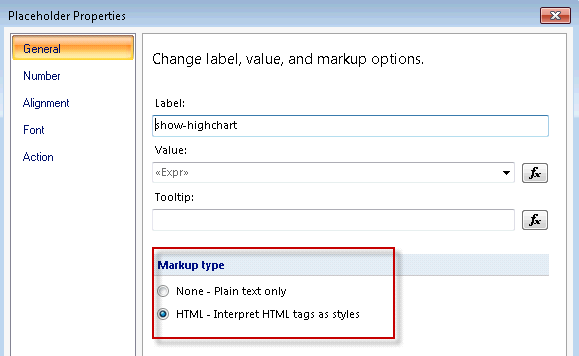
And that is it really, once you click on the link (in the HTML rendered SSRS report), the JavaScript will be executed.
To get Highcharts on run in SSRS, we need to use the technique above to add a reference to a JS file on the server in the Head section, this JS file will have all the necessary code to create a placeholder for the Highcharts graph, and render it on the SSRS report. The expression in the Value field looks like this:
('
function addScript(scriptFile) {
var head = document.getElementsByTagName(\'head\')[0];
var script = document.createElement(\'script\');
script.setAttribute(\'type\', \'text/javascript\');
script.setAttribute(\'src\', scriptFile);
head.appendChild(script); }
addScript(\'http://ai-prd-ssrs-1/highchartdemo.js\');
') )
"">SHOW HIGHCHART</a>"
You’ll need to replace “http://ai-prd-ssrs-1/highchartdemo.js” in the code above with your local path.
Highcharts SSRS Placeholder using <span> Tag
The <div> tags are used by Highcharts (in the RenderTo:<div-id> parameter) as a placeholder of where the chart should be rendered on the page, but since SSRS does not allow a <div> tag to be rendered, we have to get around the issue by adding a placeholder <span> tag in SSRS as an intermediate placeholder which, using JavaScript, we will find and append the required <div> tag onto.
You can add a <span> tag in SSRS using the same technique described above, the expression in the Value field looks like this:
JavaScript for Loading Highcharts in SSRS Reports
The JS file is really self explanatory, the main structure is divided into 3 section, the first section is the latest JQuery library code, the second section is the latest Highcharts library code, and the last section is some custom written JavaScript to write the <div> placeholder and load the Highchart graph, I have combined all JS into a single file so everything can be loaded at once, and I wouldn’t need to add code to handle waiting on JS files to be retrieved from the server before executing certain functions.
//-----------------//
// HIGHCHARTS LIBRARY CODE HERE //
// START OF HIGHCHARTS CUSTOM DEMO CODE //
//function to generate demo highcharts graph
function show_chart() {
var chart = new Highcharts.Chart({
chart: {
renderTo: 'container' //render to div tag with id container
},
xAxis: {
categories: ['Jan', 'Feb', 'Mar', 'Apr', 'May', 'Jun', 'Jul', 'Aug', 'Sep', 'Oct', 'Nov', 'Dec']
},
series: [{
data: [29.9, 71.5, 106.4, 129.2, 144.0, 176.0, 135.6, 148.5, 216.4, 194.1, 95.6, 54.4]
}]
});
}
//function to add a div tag child to the tag we originally added in SSRS, as a placeholder for the Highcharts graph.
function span_to_div()
{
var el = document.getElementsByTagName('span');
for (var nr=0; nr<el.length; nr++)
{
if (el[nr].innerHTML == "SPAN"){
el[nr].innerHTML = "DIV ADDED";
var div = document.createElement("div");
div.id = "container";
div.setAttribute("style","width:600px");
el[nr].appendChild(div);}
}
}
//function to add a div tag child to the tag we originally added in SSRS, as a placeholder for the Highcharts graph.
function show_highchart_on_ssrs()
{
span_to_div();
show_chart();
}
show_highchart_on_ssrs();
And that is it really! now you can render your Highcharts graphs from within SSRS itself. This concept could obviously be extended, for example I use a demo chart in the JS file, but instead you could make a call to the SSRS Web Service and grab the XML data as input to generate the Highcharts graph. I’ve demoed this technique in the previous article.






do you have working demo for this?
I’ve been meaning to release something, definitely loads of people asked about a working example, just not had the time.
Watch this space though, I do have 2 weeks off coming up, might just be the incentive I need to get something out there
I really cannot follow instructions here. can you email me your code please I thanks you a bunch. I really need this.
Great article… I was getting the impression it wasn’t possible to use JavaScript to this extent in SSRS (aside from some basic pop-up/window navigation stuff). What I haven’t been able to envision yet is how – instead of using the static dataset embedded in your show_chart function – to use an SSRS dataset to retrieve a recordset from SQL Server. Any thoughts?
Regards,
Jeff
Thanks Jeff, really once you turn this into a “web development” problem, rather than staying confined within the SSRS framework, there are so many awesome ways you could take this concept further, on one project I ended up adding a place-holder link on each row of a table, when the user hovers over the link, a box will appear with a few Highcharts visualization elements embedded within it, which provides further insight on the data in that particular row (sort of an on-hover data drill-through). Another time I ended up overlaying the default SSRS column chart type, whenever they appeared in any report, with a Highcarts interactive column charts housing the same underlying data (by reading it from the HTML page via JS).
Anyway to answer your question, you can use JQuery to make an AJAX call to the SSRS report (that retrieves the SQL Server data), with the SSRS URL parameter to export the report in ATOM format, then you can use the result set to build your chart, so essentially the show_chart function will contain an AJAX call similar to this:
var $graphUrl = getURLParameter(‘graph’);
$.get(‘HTTP://[report-server-domain]/ReportServer?[Report-Name]&[Report Parameters]&rs:ParameterLanguage=&rs:Command=Render&rs:Format=ATOM&rc:DataFeed=xAx0x0xCx0′, function(xml) {
// Split the lines
var $xml = $(xml);
//process $xml data into the Highcharts axis
Obviously you need to replace anything between [] with your own server/ssrs details (which you can find by hitting that SSRS report via Report Manager, and looking at the URL), and thats it really!
You should take a look at the JS code in the Convert SSRS Charts to Highcharts (Dynamic) Graphs article, the code is pretty self explanatory, it initializes a chart, grabs the data from an ATOM SSRS export, and pushes it into the chart’s axis… simples!
Thanks for your comment!
Dude it has been long provide the solution please. I have waited long time
Hi Anuj,
I am really sorry man, but this is no longer a project that I am pursuing, and it is very unlikely that I will be able to get a demo running and posted. My involvement with SSRS is currently minimal, as I have started to focus much more on predictive analysis and Big Data technologies.
If you are really keen on someone providing an example, or a clearer explanation, of the methods presented in this article, then I am sure someone at the Microsoft SSRS Technet forums will be able to lend you a hand.
Again, I am very sorry for this.
Cheers,
Its cool Brother. No Problem at all. Thank you very much.
Great stuff,
I was wondering why you chose to inject the javascript via a link (meaning that you have to click a button before the functionality becomes available), and didn’t add it to the ReportingServices.js file?
Isn’t that an option or am I missing something?
thx
Antoon
Hi Antoon,
Thanks!
You are absolutely correct, there is no reason why you can’t make the chart show up on document load by injecting some code into the ReportingServices.js file, the only reason I didn’t do that here is because the requirements I had was for a click-based interaction.
Cheers,
Great article, I playing with d3js and SSRS for quite some time, this demo is great tho. Thinking SSRS as a web platform opens up whole new dimension!
Thanks Krishna. I do actually enjoy d3js visualizations, they are very catchy!
definitely agreed on the d3 front, using ssrs as a web platform opens up huge possibilities. olap data to d3. dynamic, interactive charting. pretty ui
For those interested in this topic (and javascript injection in SSRS).
I used your examples to create dynamic navigational menu’s, you can find the solution at the codeplex.
The javascripts there might help people along in enhancing SSRS.
As some other readers, I couldn’t find any frames in the generated HTML (SSRS 2008R2 & 2012), which seems bizarre.
Does this demo work properly in SSRS 2008 R2?
Should do, AFAIK
Yes. It runs properly on SSRS 2008 R2. But there are some browser issues on the Safari/Chromes of MAC OS.
Doesn’t work with SSRS 2016.
All script Tags will be ignored.
You are absolutely correct. SSRS 2016 rewrote their API stack, which is structured completely differently from previous versions, making this approach to a hybrid SSRS/JS obsolete.
To be honest I am surprised this is still something users are asking for, its been almost 5 years since I wrote this article
Hi
I stuck with the generating the http://ai-prd-ssrs-1/highchartdemo.js. when i am giving the local path like F:\Highcharts SSRS Integration\highchartdemo.js chart is not showing..
If possible can you give clear idea on how to implement it.
Thank you
-Siva